
Getting Started with SamparkWA — 5-Minute Quickstart Guide
Prerequisites
Before you begin, ensure you have the following:
- A desktop or laptop computer running Google Chrome, Brave, Microsoft Edge, Vivaldi, or Opera
- An active WhatsApp account (personal or business) linked to WhatsApp Web
- A CSV file with your customer contacts (we'll show you the format below)
- 5 minutes of uninterrupted time
SamparkWA is designed for shopkeepers, salon owners, and small business owners. If you can use WhatsApp Web, you can use SamparkWA.
Step 1: Install SamparkWA
There are two ways to install SamparkWA: from the Chrome Web Store (recommended) or by loading the unpacked extension manually.
Option A: Chrome Web Store (Recommended)
- Visit the SamparkWA Chrome Web Store page
- Click 'Add to Chrome'
- Confirm by clicking 'Add extension' in the popup
- The SamparkWA icon will appear in your browser toolbar
Option B: Load Unpacked (For IT Admins)
- Download the samparkwa-latest.zip file from our /download page
- Extract the ZIP file to a folder on your computer
- Open chrome://extensions in your browser
- Enable 'Developer mode' using the toggle in the top-right corner
- Click 'Load unpacked' and select the extracted folder
- The SamparkWA icon will appear in your browser toolbar
Step 2: Open WhatsApp Web
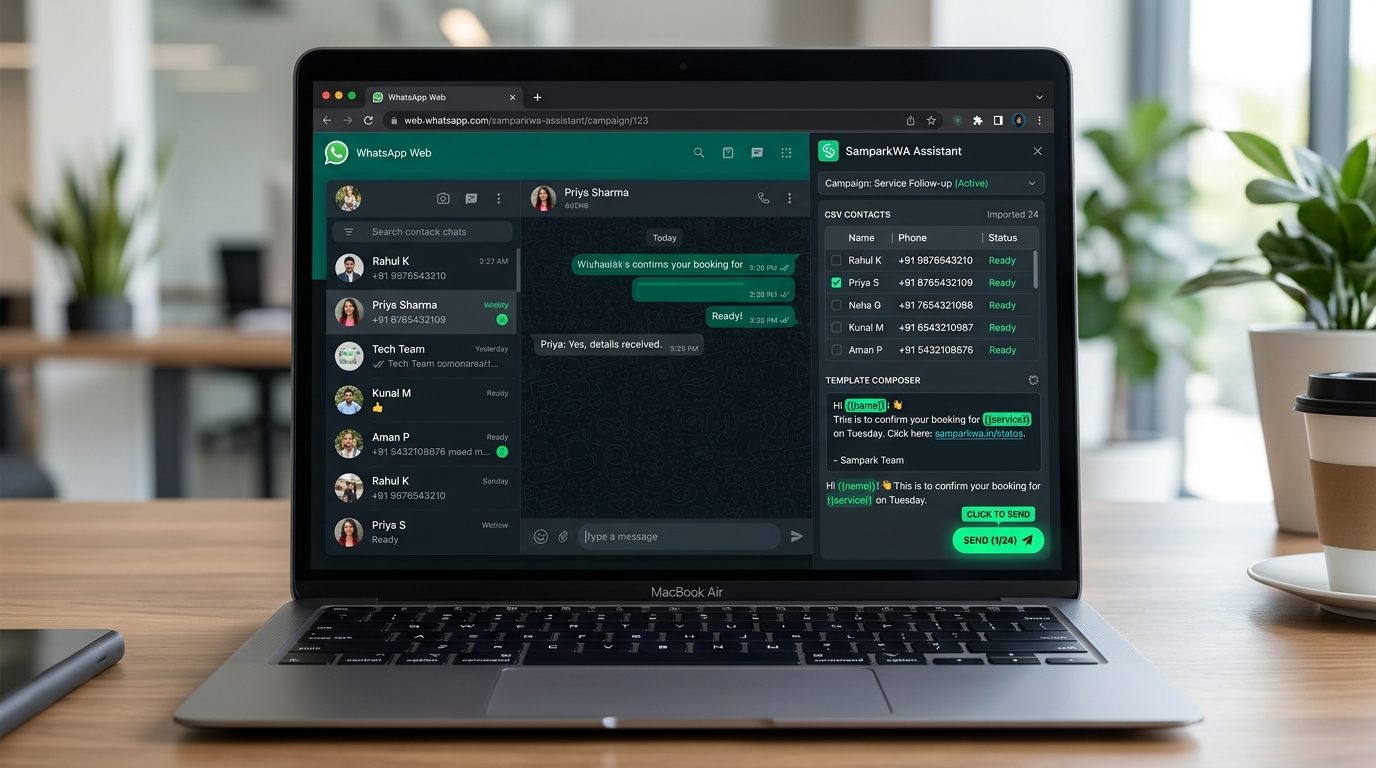
Open web.whatsapp.com in your browser and scan the QR code with your phone (WhatsApp > Settings > Linked Devices > Link a Device). Once WhatsApp Web loads, you'll see the SamparkWA Assistant Bar at the bottom of the screen.
SamparkWA works inside WhatsApp Web. You must keep the WhatsApp Web tab open while sending messages. If the tab is closed or you lose internet connection, your campaign will pause.
Step 3: Import Your First CSV
Create a CSV file with your customer contacts. The simplest format is:
name,phone,service,appointment_date
Ramesh Kumar,+919876543210,Haircut,2026-10-25
Priya Sharma,+919812345678,Facial,2026-10-26
Amit Patel,+919765432109,Hair Spa,2026-10-27
Click 'Import CSV' in the SamparkWA Assistant Bar. Select your file. SamparkWA will:
- Validate all phone numbers against the E.164 international standard
- Sanitize every cell for CSV formula injection (=, +, -, @ prefixes neutralized)
- Remove duplicate phone numbers
- Show you a preview of all imported contacts
- Flag any invalid numbers for your review
All data is stored locally in your browser's IndexedDB. No contact information ever leaves your device. This is a core Trustoryx security standard.
Step 4: Compose Your First Message
After importing your CSV, SamparkWA detects the column names and generates variable chips. Click a chip to insert it into your message template:
- {{name}} — inserts the customer's name
- {{service}} — inserts the service field
- {{appointment_date}} — inserts the appointment date
- {{business_name}} — inserts your business name (set in Settings)
Select a language (English, Hindi, or Hinglish) and type your message. Click 'Preview' to see how the message will look for the first 3 contacts. Verify that variable chips are being replaced correctly.
Hi {{name}}! {{business_name}} se reminder hai - aapki {{service}} ki appointment {{appointment_date}} ko hai. Confirm karne ke liye YES reply karein. Thanks!
Step 5: Send with Human Confirmation
When you're satisfied with the preview, click 'Prepare Campaign'. SamparkWA transitions each contact through the campaign state machine:
queued → prepared → manually_confirmed → sentFor each contact, SamparkWA will:
- Open a new chat with the contact's phone number in WhatsApp Web
- Pre-fill the message text in the chat input box
- Wait for you to review the message and click the send button
- Record the send status and move to the next contact
SamparkWA will never auto-click the send button. You must review and click send for each message. This is what makes SamparkWA safe — your sending pattern is identical to manual messaging.
Next Steps
Congratulations! You've sent your first SamparkWA campaign. Here's what to explore next:
- CSV Import and Formatting — Learn advanced CSV formats, custom columns, and E.164 validation rules
- Hindi & Hinglish Message Templates — 25+ ready-to-use templates for every business type
- Opt-Out and Compliance Guide — Set up your Do-Not-Contact registry and stay compliant
- Official WhatsApp Cloud API Setup — When you're ready for high-volume automated sending